
Note: This article may contain affiliate links. If you click through and make a purchase, we earn a small commission at no extra cost to you.
Hema Maps were once a dominant force in the Australian off-road map market. Like many outback travellers, we started with their paper maps. Then we graduated to an all-in-one navigator and then, the Hema 4WD Maps app on an iPad.
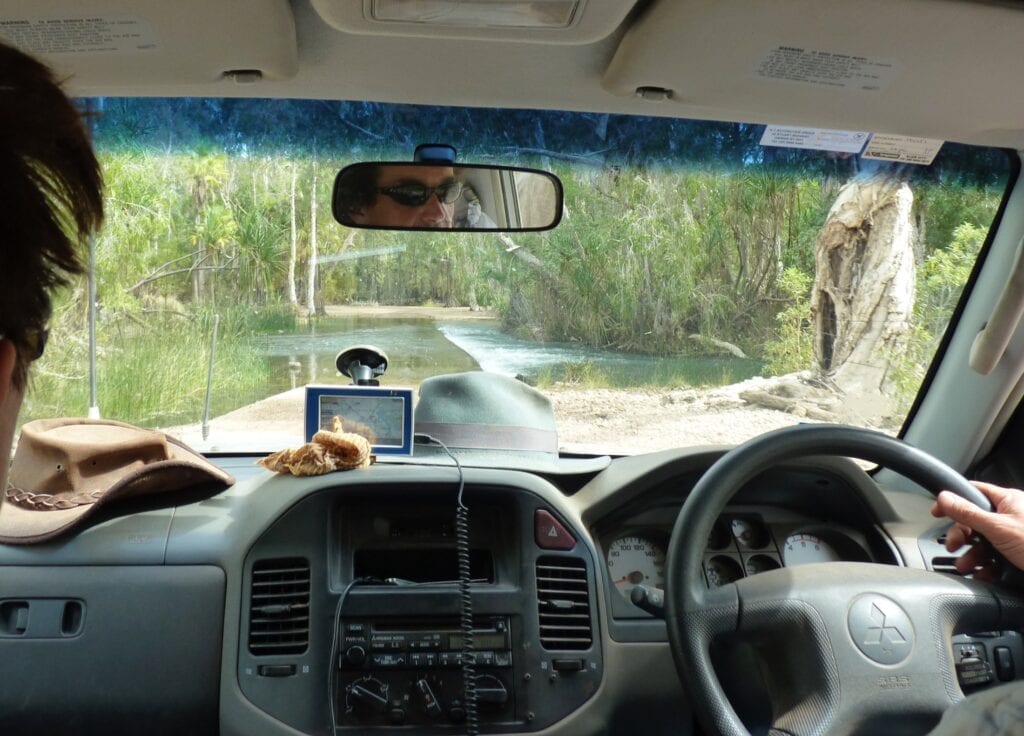
In fact, we used the 4WD Maps iPad app for several years. And it was always the first thing we packed when heading off! We came to rely on this app to guide us all over Australia.
But that’s changed. And it’s all due to Hema treating their customers with absolute contempt…
Hema Loses Its Way
Hema led the way in mapping for many years. Their maps were fantastic, and their paper maps still are.
But we need to address the elephant in the room. Put simply, Hema lost its way… big time.
Anyone unfortunate enough to have bought their disastrous HX2 will know exactly what I mean. The HX2 was a pathetic pile of unreliable crap. The software regularly froze and the hardware was cheap and nasty.
All that for a premium price! Talk about cutting off your nose to spite your face.
And then Hema decided to pull the pin on the software altogether.
At the same time, they cut off access to the Hema Cloud. We had tens of thousands of kilometres of logged tracks on the Hema Cloud. But does Hema care? Nope.
It’s all gone. Thanks Hema.
Now, their corporate spin is that a partner let them down, blah, blah, blah. Truth is, we customers really don’t care.
Hema deserted their customers and treated us with contempt. They walked away from us. And they gutted their customer service to the point where it’s effectively non-existent.
Eventually they cobbled something together and threw it out on the market, rebranding it as the HX2+. Oh, and no Cloud server.
But the damage was done. The smart people have moved on, finding much better options in Garmin or similar units.
We too found an alternative – ExplorOz Traveller. It’s a fantastic app that runs reliably and consistently on our iPad. No freezing, no meltdowns for no reasons, and best of all… not Hema!
Note: We are not affiliated with ExplorOz Traveller in any way. They are simply a small business with a fantastic app that deserves promotion and support.
Okay, that’s out of the way. Moving on.
If you still have the Hema 4WD Maps app then this article’s for you. Or if you bought the HX2+ thinking it would good but then realising it has an ancient map app on it, then this article’s also for you.
What’s The Difference Between Raster and Vector Maps?
The Hema 4WD Maps app uses what are called raster maps… basically digitised versions of the paper maps.
A vector map is a digital map, designed for digital platforms. ExplorOz Traveller maps are examples of vector maps.
Love them or hate them, vector maps are the way of the future. Quite simply, they work better on a digital platform.
Running raster maps on a digital device is a bit like shoe-horning a V8 into a Mini. You can make it work, but it’s not pretty! So quite logically, Hema are focussing on vector maps. It’s just a shame they botched it so badly with the HX2 debacle.
What’s annoying though, is Hema are progressively taking away maps from the 4WD Maps app, including the extremely useful State Maps. Even the National Parks maps don’t have the detail they had previously.
We understand some of these maps are way out of date. But personally, we’d rather have outdated maps than nothing at all.
And vector maps aren’t as good as raster maps for off-road driving. The problem is, as you zoom in and out, the amount of displayed information changes. For example, topo lines and minor roads disappear as you zoom out.
So you zoom out to see where to go, only to find the track you’re on has vanished from the screen.
This doesn’t happen with raster maps.
You do get used to it though. And it does depend on the map quality, how well the app’s built, and how much you can fine-tune the settings.
I do know for a fact that Hema worked hard in the beginning to find the best compromise between file size, responsiveness, zoom level and the amount of detail on the vector maps.
Hema definitely improved the resolution over time… until they killed it stone dead! But the ExplorOz Traveller app leaves them in the dust.
Raster maps are going the way of the dinosaurs, so we adapted to using vector maps despite their shortcomings.
Now, let’s have at some of the features of Hema’s 4WD Maps app for iPad.
Mastering The Basics
In the video below, Peta runs through the features she would use every day when we were travelling.
First up, she explains the basics of how to use the Hema 4WD app. Things like:
- How to select maps,
- How to search,
- Centring the GPS position marker on the iPad screen, and
- Marking Points Of Interest with your own custom pins that you can refer back to later.
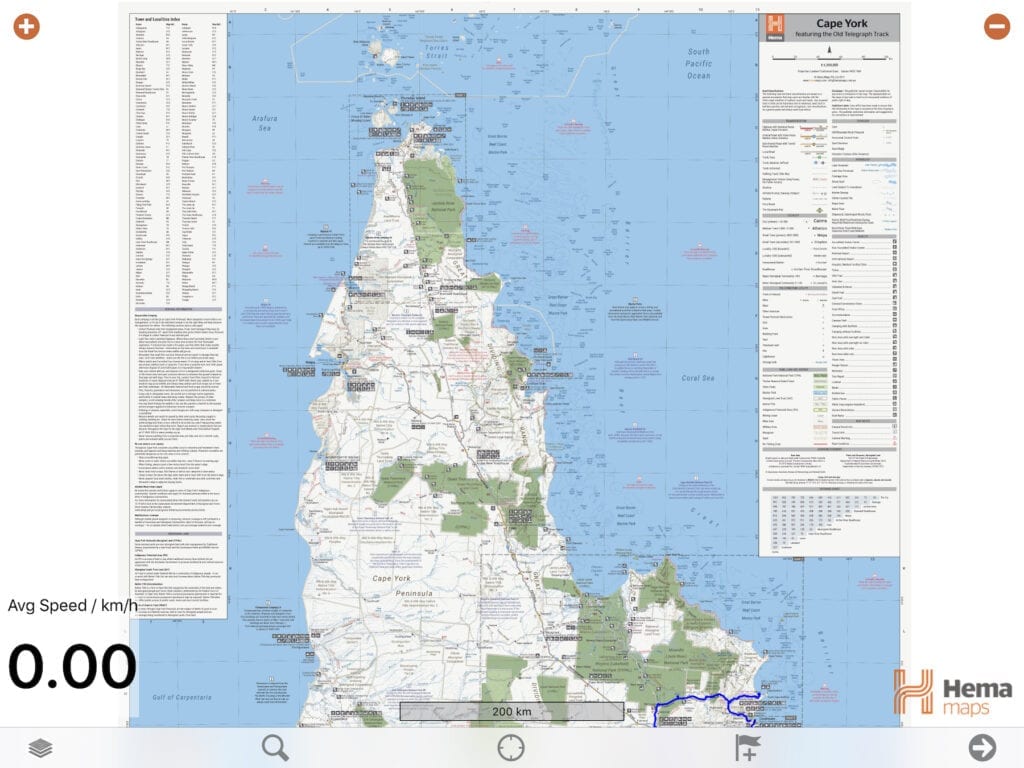
The best way to understand the Hema 4WD Maps app is to think of how paper maps are arranged. First you might look at a map of Australia, then decide you want to drill down into a region.
So if you had physical maps, you’d grab the map with more detail of the region you’re interested in. Then you might want more detail on say a National Park. So you’d grab the map for that National Park.
The app works the same way. As you zoom in, Hema offer all the maps covering that region.
Moving on. Next, Peta explains where to find useful information like:
- Elapsed travel time,
- Your instantaneous speed,
- Your average speed,
- Elevation, and
- Current GPS co-ordinates.
She goes through the steps of:
- How to start logging and recording your trips,
- How to continue logging in the background when the iPad is asleep or in another app, and
- How to change the default colours of your logged route and so on.
With your driving instructions out of the way, it’s time to move onto the fun part… using the maps!
Using Hema Maps In The 4WD App
Used in combination, the various types of maps give you loads of detailed information regarding the location you’re in.
And this is what we liked most about Hema Maps, whether on paper or on the 4WD Maps app. Things like explorer’s routes and so on. You won’t get that on a vector map.
Peta shows you how to access the various maps and what each type of map can tell you about the location you’re in. She explains the finer points of:
- State maps (Update: No longer available, grrrrr),
- Topo maps,
- National Park Maps, and
- Great Desert Tracks maps.
So sit back and discover what the Hema 4WD Maps app for iPad can reveal.
The Orphans
There’s a bunch of maps which seem to be randomly scattered through the different categories, depending on your current location. They live under Regional Maps.
These orphans generally seem to be one-offs, unique to a particular area. Regardless, it’s worth you trawling through them. Sometimes they have useful information. Other times… well, not so much.
Handling The Punishment
Now you might wonder whether a stock-standard iPad is a suitable device for coping with the endless corrugations and rough tracks of the outback.
All I can say is, have a look at this video!
Our iPad sits in a sturdy Ram mount. While the Ram mount itself holds the iPad firmly, it can never be expected to soak up all the bumps and bruises being transmitted into the cab.
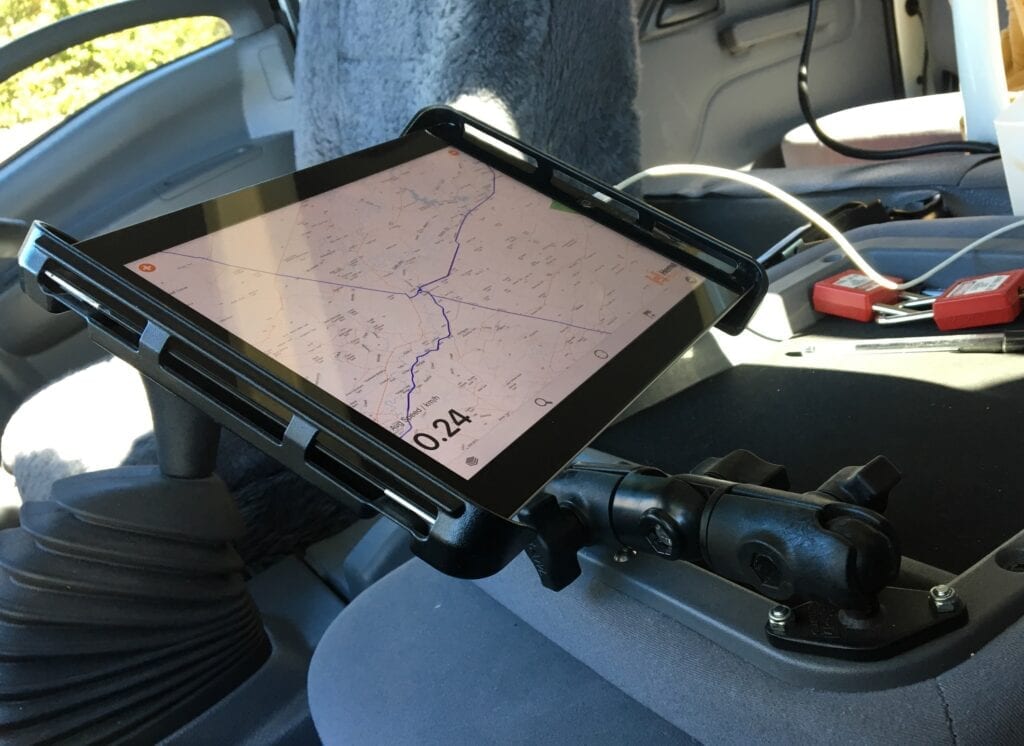
We’ve had no issues at all with the iPad. It just keeps doing its job, regardless of the punishment it cops.
One last thing, before I forget…
Sometimes when we’re writing an article it’s simply impossible to create an accurate map of where we’ve been. Our journey through Judbarra / Gregory National Park was one example. In these situations, we simply take a screenshot and use it as the map in our article.
Why am I telling you this? Because it’s so easy to take a screenshot. Your mate asks you about some remote place… take a screenshot and send it to her. Easy!
A Better Option Than Hema Maps
Some might say poking your own eyes out with a burnt stick would be a better option than Hema Maps. But I digress…
Hopefully, Hema will continue to support this app by providing map updates and not removing maps without warning. Raster maps might be old-fashioned, but they still have their place.
But who knows now? Hema has eroded customers’ trust to the point where you’d have to think long and hard before handing over your hard-earned cash to them.
Keep in mind though, even if Hema stopped supporting the 4WD Maps app now, the maps will still be relevant for many years to come.
Despite Hema’s apparent determination to self-destruct, the Hema 4WD Maps app seems to have survived mostly unscathed. It’s simple to use and never let us down. Without it, we would have been lost many times.
And that’s no fun when you’re a long way from help!
One suggestion though. Always carry back-up paper maps when you’re travelling remote. We have a large storage box filled with old maps.
You never know when your electronic device might fail. Unfortunately, Hema gave us real-life experience with that when they released the HX2.
Plus, there’s something satisfying about unfolding an old paper map and navigating the old-fashioned way!
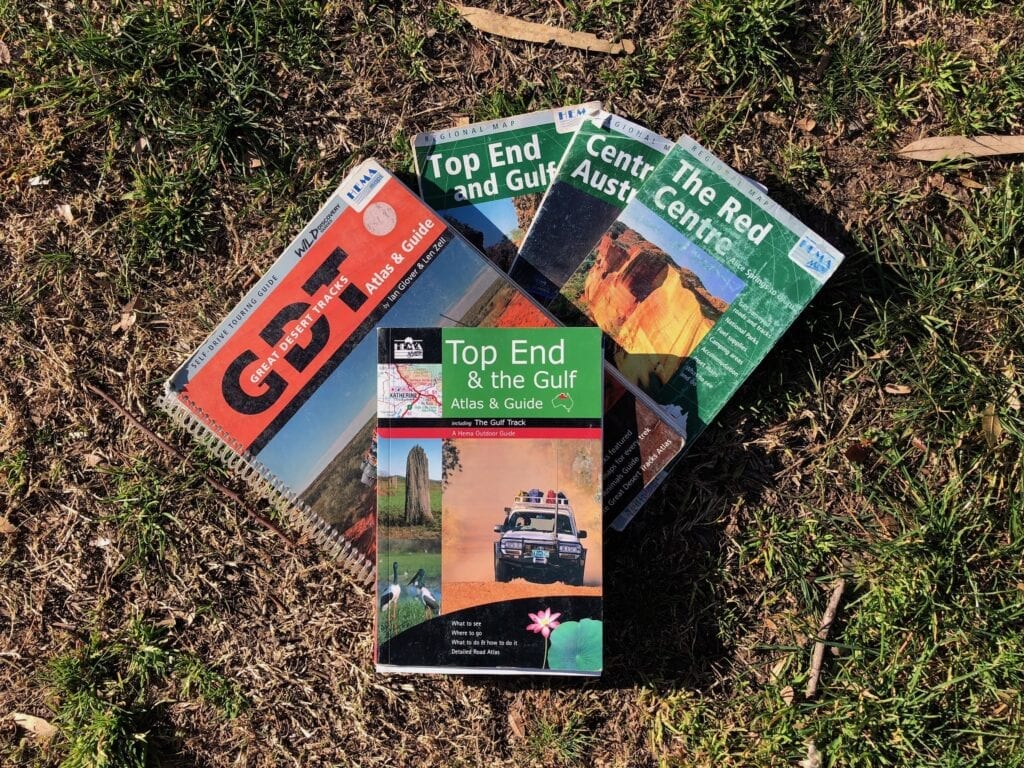
Personally, I don’t recommend you go near any Hema product that isn’t printed on paper. After releasing the HX2, they burnt through years of goodwill in record time.
We’ll never go back. Sadly it seems business ethics and customer service are no longer important to them.
There are much better GPS navigation options out there than Hema’s devices. The standouts are ExplorOz Traveller app and Garmin devices. Each has pros and cons. What’s best for you depends on what you’re using the maps for.
Hema still leads the pack with paper maps. Hopefully they’ll continue to do so.
Looking for more reviews on 4×4 Accessories? Then go here for more.

Get your Traveller’s Guides
… and a whole lot more at our FREE RESOURCES Page!
Any questions or comments? Go to the Comments below or join us on Pinterest, Facebook or YouTube.
Any errors or omissions are mine alone.
Note: We are an affiliate of the Hema Maps shop. However, we do not recommend any of their electronic products. We purchased both the iPad and the Hema 4WD Maps app at full retail price. All of our articles and reviews are 100% honest – we tell it how it is.
G’Day
The iPad that you purchased – does it have a SIM card installed or do you use the bluetooth connection your phone? I am curious as my HEMA HX-1 keeps failing me at odd times and I need a backup plan. I also carry paper maps as my total failsafe along with a compass.
cheers
Wooly
Hi Wooly,
You need an iPad that can take a SIM card, but you don’t actually need to install a SIM card. Apple call them “Wi-Fi + Cellular” models. The reason is, the Wi-Fi + Cellular models have a built-in GPS which you need for the Hema Maps app.
If you need to download apps or do updates on your iPad, you have two options. First is to buy a SIM card. Second option is to create a Wi-Fi hotspot with your phone and connect your iPad to it. That’s what we do.
I like your idea of paper maps as a backup. We also carry a big box of paper maps! Haven’t needed them yet, but it’s great to have a backup plan.
Hope this helps. Cheers, Andrew
Hi there,
can you use the app as a navigating tool?
Start at point A and end up at point B, approx. time, distance and the route you are going to take.
We have an old hema that we love as it has all this, however thought it was time to up date. So purchased the Hema app for our iPad but now i am so confused as i cant seem to use it just around the towns to log an address to find out how long it will take to get there.
Am I missing something?
Cheers
Lir
Hi Lir,
Not the Hema Maps app. However, the Hema 4×4 Explorer app has navigation. Have a look at the details on the Hema 4×4 Explorer App here.
It might also be worth giving Hema a call so they can point you in the right direction and give you the right solution for your specific needs.
Hope this helps. Cheers, Andrew
Hello. As you use this app, I wonder if you can tell me about whether it will allow one to import “marks” or waypoints from a GPX file, as my Hema Hx1 does. I am using Garmin Basecamp and satellite imagery to help me map- old railway stations, and i transfer them to the HX1 by exporting to GPX then importing from the memory card into the HX1. Main problem with the HX1 is that the screen is just a bit smaller than I’d like, so I’m wondering about using a Tab with a Hema app – but I’d need to be able to pre-load such waypoints (and hundreds of them!). Any advice on this would be appreciated. Thanks, Tim.
Hi Tim,
Sorry, I don’t know the answer to your question. We don’t use waypoints, so we don’t have any experience with them.
Have you tried contacting Hema about this? They should be able to assist you.
Cheers, Andrew
I have given up to update my hema explorer and have purchased a Garmin instead as it is a lot easer to update
Does the Garmin give you “proper” 4WD maps? I haven’t used one for a few years now and have lost track of their latest map apps. Cheers, Andrew
Hi there and thanks for your article.
Maybe it’s a dumb question but with the 4WD app does your location and direction show on all the various maps as you drive along (you showed turning a corner with direction showed as an arrow, but just for one of the types of maps, so does it do it for all?)
Second question is the Explorer app has I think pretty good off road mapping but it’s subscription I think. Are the maps that bad in comparison?
Thirdly you mention ringing Hema, is there an info line? All I have found is an online “chat” and it’s terrible
Many thanks
Ron
Hi Ron,
1. Yes, it does show the location and direction on all the various map types.
2. If you mean the 4×4 Explorer app, then yes it does have good mapping. It has been widely panned since it was first released, however Hema have done a lot to improve the user experience. I strongly suggest you take a look at their 4×4 Explorer Q&A here, their training videos here (they’re very helpful) and their 4×4 Explorer support page here.
4×4 Explorer takes some getting used to, but overall we’re just starting to see the benefits of vector maps over the old-style raster maps.
3. You’re definitely not the first to ask this question! I’m not sure what’s happened to their Support, maybe it was overwhelmed after the 4×4 Explorer app was released. Regardless, I agree. Their Support is sadly lacking now. Try going here to their online Support or here to their Contact page.
I hope this helps.
Cheers, Andrew & Peta
hi Thank you for your posts.
I have been logging my trips for a few years now. I have them all in my Tracks folder, and Marks Folder.
I would like to know how to save the trips as say NT Trip, or Dam Trip. at present i number them as D1 home to …. D2 continue on for 2 weeks with a new number for each day. how do i group them all together and Name it On my maps I have lots of tracks which I do change the colour. But would like to just call up one trip. at a time
Hope you can help me please. Thank you Sylvia
Hi Sylvia,
I’m not sure whether you can do this. However, I’ll see if I can get a more definite answer and add the answer here.
Cheers, Andrew
Hi Sylvia,
This information is from Hema:
1) The 4WD Map app does not have a folder sort option where you can group or organise your tracks/marks. So the current way you’re organising your tracks is the best way to get around this.
2) In regards to only pulling up one or a few tracks you can do this:
– In the 4WD Map app, open up the data menu (the tracks marks and routes pages).
– In the top right corner there will be a menu button. Tap this, then tap the Hide All Tracks option.
– All tracks will now not display on the main map.
– For all the trips you wish to display, tap on the track (from the track page) and you’ll see a toggle button that says Visible. If you tap Visible so it is “on”, then this track will display on the map.
This way you can get your app set up and ready to only display the tracks you need. This will speed up the main map as well.
The folder functionality you’re after is available in the 4×4 Explorer app (built-in). But depending on the customer and their needs this app may be better or worse for them.
Hope this helps.
Cheers, Andrew
I recently purchased State Maps of both NSW & Vic. You have asked for a review & this area is all I can find. The email your sent would not accept my remarks.
Thank you, the maps are great. They have the whole state on one side (most important to me) plus other interesting information. I wish the RAA carried these maps instead of those with half of the state on one side & the resent on the other side.
I have a wish list of places (that I have gathered from various sources) & now I can mark them on the maps & plan adventures. I would also like to know when the state Map of Queensland is available for me to purchase please.
Hi Lynette,
We’re not affiliated with Hema. You’ll need to contact them directly. Click here for their contact details.